

Reading With ADHD: A Practical Guide to Retain the Best Parts of your Books
Here's the scrappy ways I find how to take notes, save highlights, and build a knowledge habit even on chaotic days.


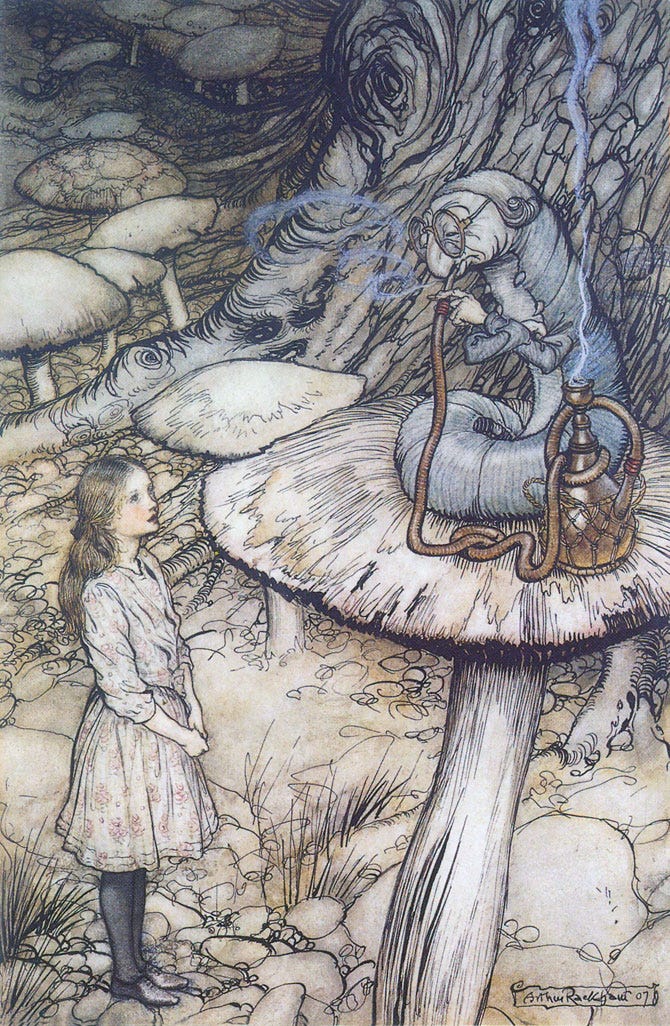
The excess of content about how people feel overwhelmed by the excess of content is, fittingly, overwhelming in its own right. You can listen to both specialists and amateurs discussing the brain rotting phenomenon on your favorite wellness podcast or even find neuroscientists giving tips to remember everything you learn.
Nothing wrong with that, as most of the advice is simple and reasonable: do one thing at time, handwrite your notes, pick a time of the day when your brain is still fresh, etc.
What I couldn’t find were practical steps to apply these tips in real life.
How to take notes and retain knowledge when you’re too tired to handwrite in a journal?
Is it even possible to stop reading, write things down, and then come back to the book without getting distracted?
What to do with the notes afterward? How would a dusty notebook help my memory?
I couldn’t find anybody answering these questions, so I created my own way to retain what I read while living the imperfect daily routine of someone with ADHD. I’m sharing some stuff I tried and worked well for me, below:
Highlighting Books (Minus the Smudges)
Highlighters are messy. Especially if you’re reading on a flight or while using public transport, where holding the book alone is a nuisance already.
I would rather not desecrate mark sentences and paragraphs on paper. For me, one of the most magical things about real books is the possibility to share with/from friends or donate them. It’s better to keep them free of scars and spoilers, while also avoiding ink smudges on your hands.
Plus, it’s so much easier to just use your phone. Free apps like Google Lens became remarkably accurate and fast at transcriptions. You don’t need to take a picture. Just point the camera to the text, select it and paste wherever you feel like.
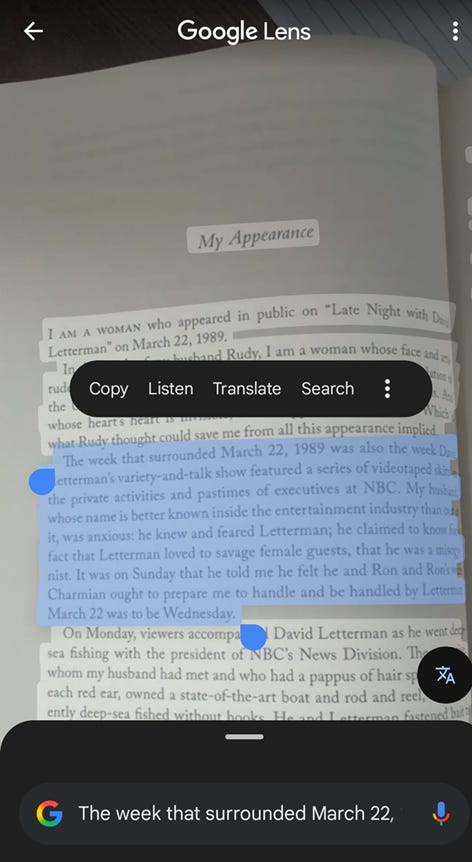
In the interest of not interrupting the reading for too long, the fastest way to save the selected text is by using a custom shortcut to Google Docs. After creating a document to be your quotes sandbox, follow these instructions to add it to your Android or iPhone Home screen.
With this little workflow, you scan text with the camera in a split second, open Google Docs and paste the content online, and get back to the book quick.
Kindle’s Notes & Highlights: Perfection
I quit trying to convince people that eBooks are great. They don’t need to be compared to real books, and we don’t need this conversation now. I just want to make sure that if you’re reading on Kindle, you’re aware of the Notes & Highlights feature.
It’s not new at all, but I suspect that less than a few people use it when I see famous books having “Popular Highlights” marked by just 10 or 12 readers. Not sure why people don’t go crazy and highlight entire pages, like I do, but we don’t need to have this conversation either.
The fact is that all highlights made on Kindle (or Kindle apps) are saved in this big collection. You can access the content from the eReader, your phone or tablet, or through Amazon’s Kindle Cloud Reader.
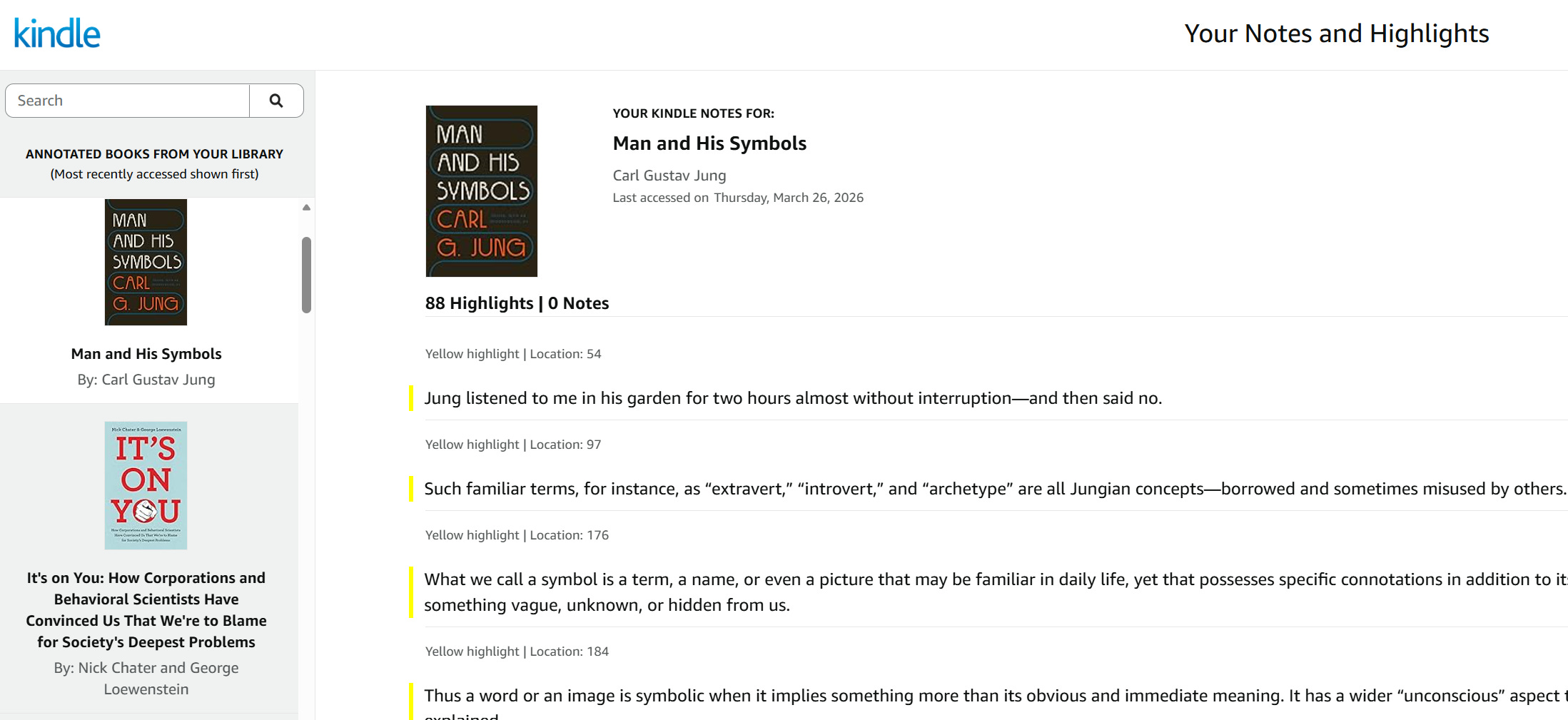
From there, you have a search bar to find stuff quickly or browse among the book covers, sort by author, etc. I don’t like to ruin write notes on physical books, but I’m merciless to eBooks. They simply make it easier to pick and save all sizes of content:
New words to expand your vocabulary and check their meaning and etymology later
Entire dialogues between characters, poems, even full short chapters (Think Calvino’s “Invisible Cities”.)
References about another books or authors
The option to add notes to eBooks is somewhat useful too. It’s clunky and slow to write on the eReader, but on the Kindle app it’s great. You can even select different colors if you want to make it pretty.
What to do with Audiobooks?
At the time I open the Audible app and find the button to create clips, I had already forgotten the excerpt I wanted to save. Besides that, selecting audio on your phone takes even more time. If you’re listening to an audiobook, you probably don’t have your hands free anyways. Solution? Go basic. Taking note of the timestamp, the chapter, page number, or remembering it later to transcribe it manually.
When I do that, I like to copy the exact sentence from the source for the sake of “fact checking”.
For classic literature, usually you can find free versions of the book on Project Gutemberg. When I was listening to Don Quixote, I just made quick notes to remember the idea of a sentence, then later on my computer, I searched for the actual phrase and saved it into my notes about the book.
For other genres, you can try your luck on GoodReads’ Popular Quotes section. As long as another reader highlighted the book and made it public, you can search and copy it from there.
What to do with all these notes, clips, and highlights?
Obsidian. Obsidian. Obsidian. And Obsidian. If you start to use it, you won’t stop recommending it to everybody. It’s like when CrossFit was cool. With the important distinctions that the app is totally free and won’t destroy your knees.
I heard about it for the first time on a Slack channel for people with ADHD. It was recommended as a productivity tool for studying, but it can be more than that.
Although things can get nerdy with Obsidian, simplicity is the whole point. Think of it like the classic Notepad merged with Windows Explorer. You just create simple text files with minimalistic formatting and then choose one of the many options to organize them.
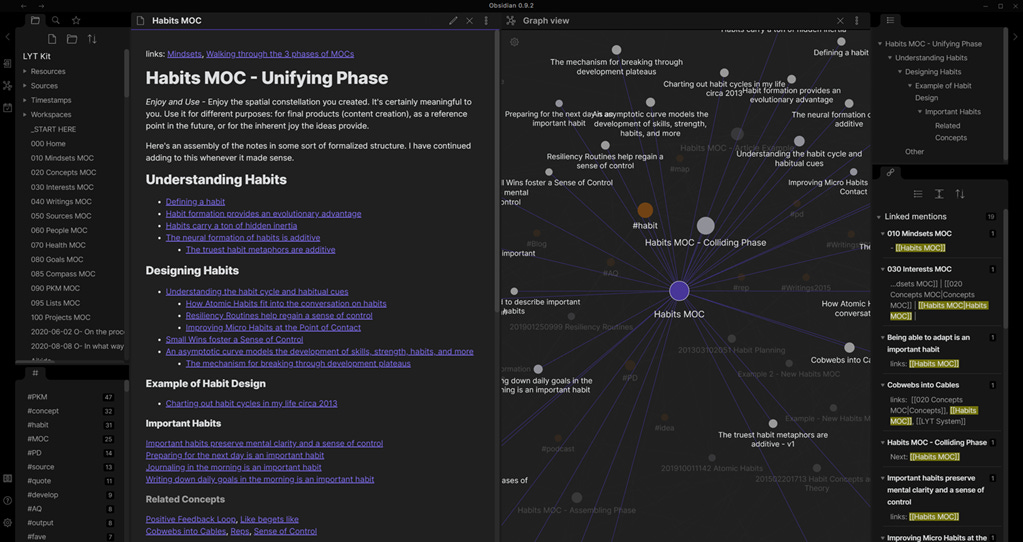
Like folders? OK. Like tags? OK. Like mind maps? OK. Like to mix all of them in no particular order? They got you covered. There is way more to cover about Obsidian, but this post is already too long. I plan to go deeper soon. For now, just want to give you some more reasons to try it.
Obsidian is, by default, offline. No A.I., no ads, no big corp spying on you to sell shit. You can sync your documents on the cloud if you want. Actually, it’s possible to customize every aspect of the appearance and the settings of the app. You can turn the whole screen black to focus only on the text,or use the Hemingway Mode to build confidence in your writing.
When activated, the Hemingway Mode plugin disables the backspace, the cursor, and Ctrl+X to prevent you from editing while you’re writing. (Despite the grammar errors on this post, I didn’t use the Hemingway plugin to write it.)
Hope these tips can be useful to you. If you do something smarter, retain what you read, tell me in the comments section!
 | A guest post by
|